How employees opt in to text reminders
The screens inside an employer’s Zipplee employee hub where an employee turns on text reminders. These screens sit behind the employee’s own sign-in; the pictures below are taken from the live hub of our own test company, “Todd — Sandbox”.
Step 1. The employee chooses to get texts
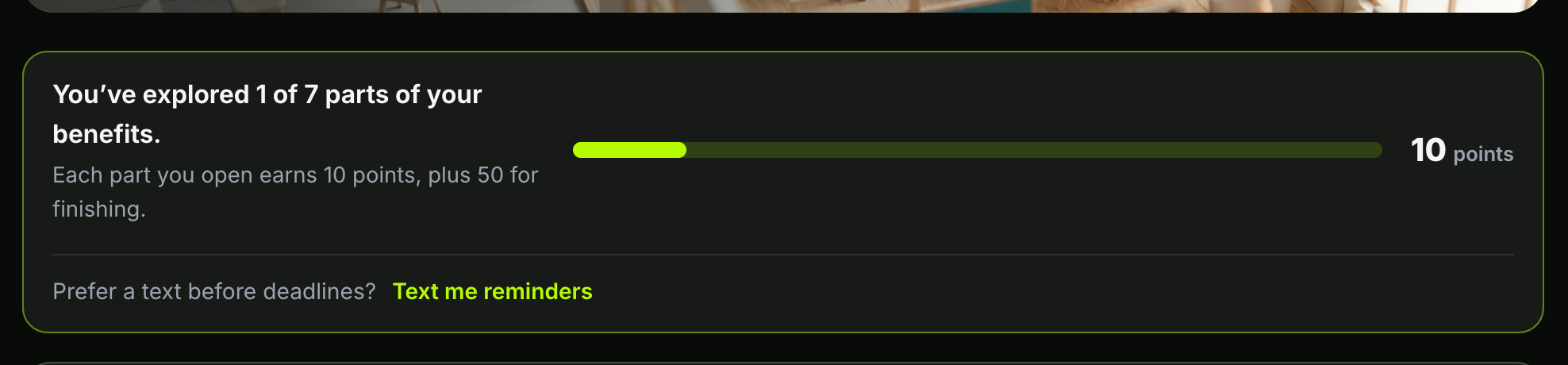
On the Benefits tab of their hub, the employee sees an offer, off by default: “Prefer a text before deadlines? Text me reminders”. Nothing is sent unless they press it and finish the steps below.
Step 2. They enter their own number and agree to the words
Pressing it opens a form. The employee types their own mobile number and ticks a box that is unticked by default. The words beside the box name their employer and say how often, the cost, and how to stop. They then press Turn on text reminders; without the tick the form refuses.
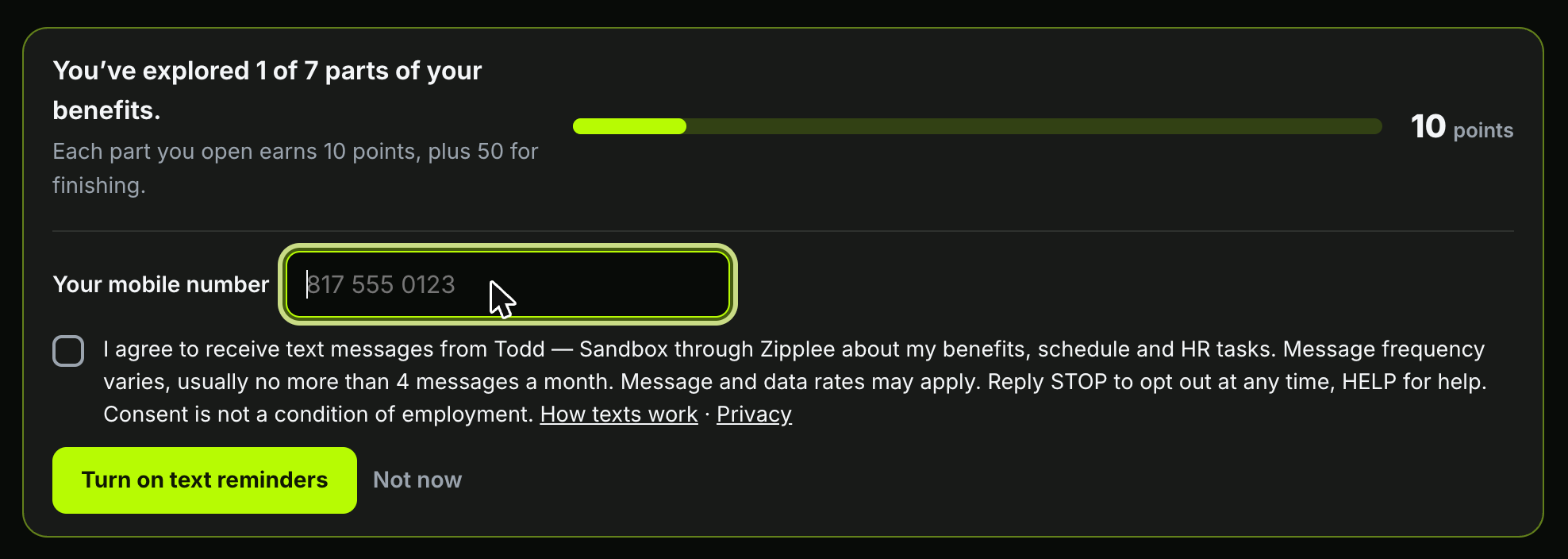
“I agree to receive text messages from [Employer] through Zipplee about my benefits, schedule and HR tasks. Message frequency varies, usually no more than 4 messages a month. Message and data rates may apply. Reply STOP to opt out at any time, HELP for help. Consent is not a condition of employment.” Links beside it open How texts work and the Privacy Policy.
Step 3. They confirm the number is theirs
Zipplee texts a 6-digit code to that number, and the hub asks for it: “We texted a 6-digit code to the number ending 0123. Type it to confirm it’s yours.” The text reads, for example:
“[Employer] via Zipplee: your code is 482913. It confirms HR text reminders to this number, usually up to 4 msgs/month. Msg & data rates may apply. Reply HELP for help, STOP to opt out.”
Only after the code is typed in does the number receive reminders. The hub then shows “Text reminders are on, to the number ending 0123”, with a Stop texts button that works at any time.
What is recorded
The date and time, the number, and the exact words the employee agreed to are stored with their consent. Replying STOP to any message, or pressing Stop texts in the hub, ends all texts to that number.
More
The full program description, with example messages, frequency, cost, STOP and HELP: app.zipplee.io/legal/sms. Privacy Policy: app.zipplee.io/legal/privacy. Terms: app.zipplee.io/legal/terms.